Check and send Capture records
Make sure every detail Capture suggested is right before it goes anywhere near the catalogue.
Who can do this: catalogue volunteers, coordinators and admins.
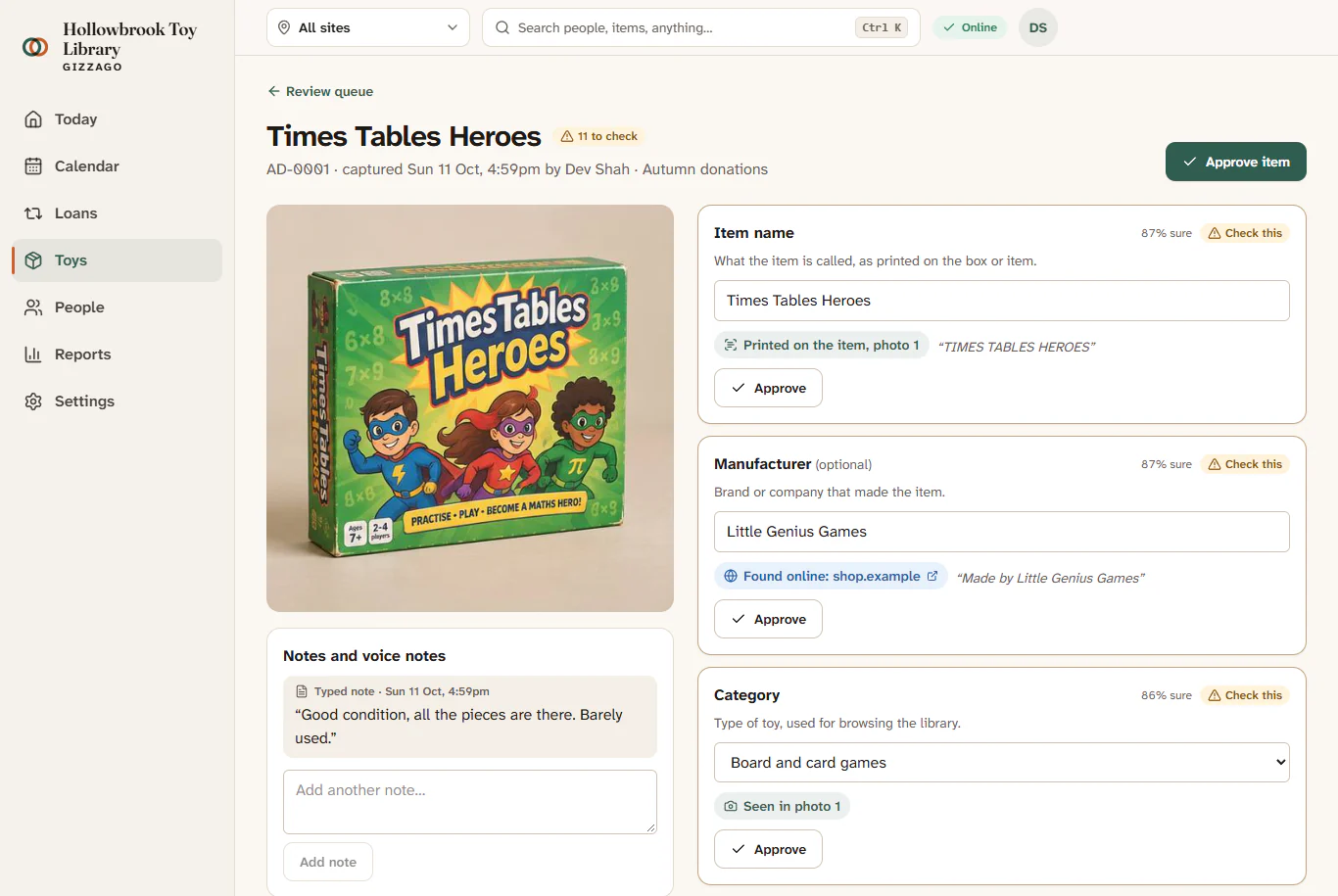
Nothing Gizzago suggests is trusted until a person approves it. Each value shows where it came from, so you can check it against the photo or the note in a moment.
Steps
- In the sidebar, choose Toys, then Add toys, then Capture with a phone, and click your project.
- Open the Review tab. Press Start reviewing, or click a record.
- Read each field. Its badge says Check this (a suggestion, with how sure Gizzago is, such as "87% sure"), Confirmed, Needed (required and empty) or Empty.
- Look at where the value came from. The chips say things like Seen in photo 1, Printed on the item, photo 1, Your typed note, Your voice note or Found online: shop.example. Click a chip to see that photo or note in a side panel.
- If the value is right, press Approve next to it. The badge changes to Confirmed.
- If it is wrong, change it, then press Save (or Undo to put it back). The trail notes "Edited in review".
- When every needed field is filled, press Approve item.
- Press Send to inbox.
A message such as "AD-0001 sent to the intake inbox". The record now shows In the intake inbox, and a coordinator can accept it as a draft toy. See The Intake inbox.
Other things you can do on a record
- Add a note: type more of what you know, then Process again so Gizzago can use it. Values you approved or edited are kept.
- Find details online: look the toy up on the web, if your library has this switched on. Web results only fill empty fields or back up matching ones; they never replace something you confirmed.
- Reject: for something not worth cataloguing. Confirm at Not worth cataloguing?. A rejected record is never sent. Press Restore to bring it back.
- See all photos and notes: opens everything for the record in one panel.
If Approve item is refused, Gizzago marks the empty field "Needed before the item can be approved."
Send many at once
- On the Review tab, when approved records are waiting, press Send 4 to inbox (the number changes).
- On the Catalogue tab, tick the records you want, then press Send 4 to inbox. Records that are not approved yet are skipped, with the reason.
- Use the chips (All, Needs review, Approved, Ready to send, Sent to inbox, Processing, Rejected) and Search this project to find records.
Changing a record after it was sent
Edit it and approve it again. It shows Changed since sent, and the button reads Send the changes to the inbox. The inbox updates the waiting record, or flags a conflict if someone has already edited it in Gizzago.
Keep a copy
On the Export tab, press Download .capture.zip for a copy of the project's records and photos. Voice recordings are left out unless you tick Include the voice recordings.