The toy page
See everything about one toy in one place, and make it live or take it out of the catalogue.
Who can do this: coordinators and admins. Catalogue volunteers can open toy pages and edit details, but cannot make a toy live or archive it.
A toy page describes the toy as members see it: its name, photos, age, fee and where it can be borrowed. The copies you actually lend sit underneath it, on the Items tab.
Steps
- In the sidebar, choose Toys, then find the toy and click its row. See Find a toy in the catalogue.
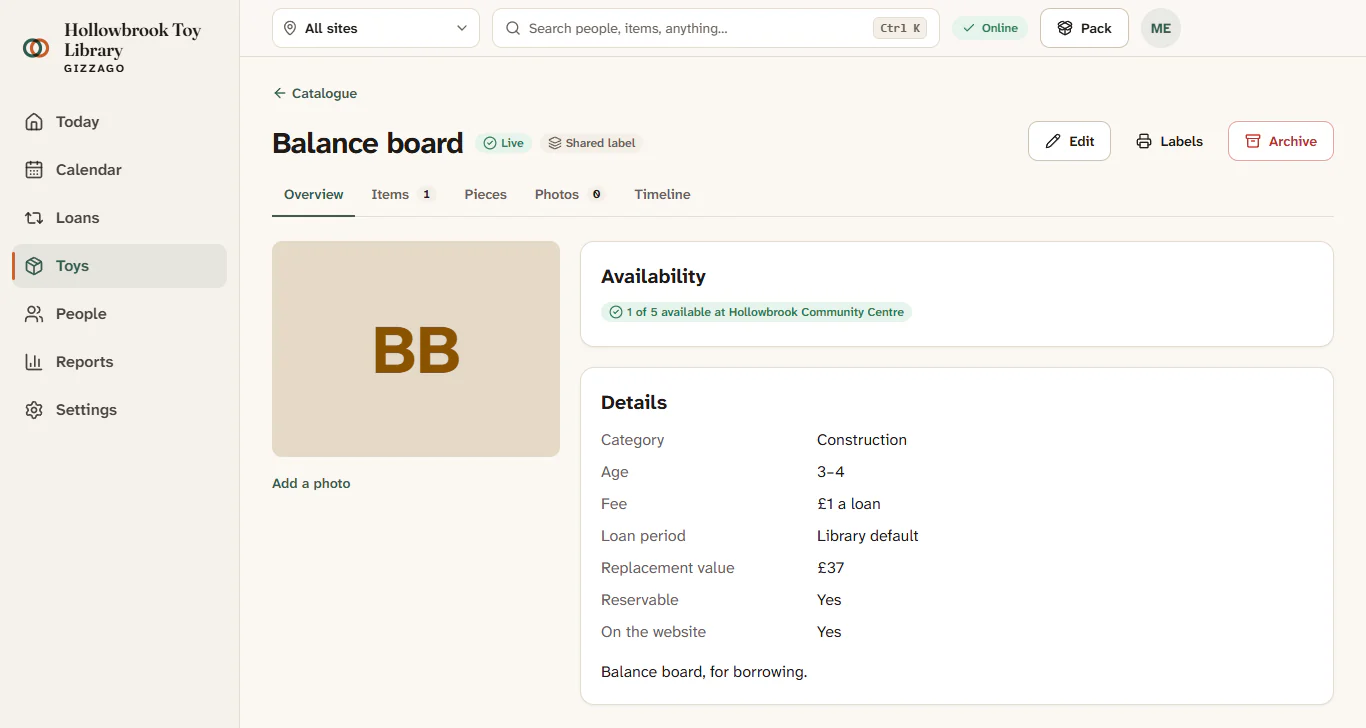
- Read the header. It shows the toy's name, a status badge (Draft, Live or Archived) and, for kits and counted stock, a second badge.
- Use the buttons on the right of the header:
- Edit opens the toy's details: name, descriptions, brand, barcode, categories, age, fee, loan period, replacement value, care and safety notes, and whether members can reserve it and see it on the website.
- Labels opens the label sheet for this toy.
- Make live appears on a draft. Press it when the details and photo are right. The badge changes to Live.
- Archive appears on a live toy. Press it, then confirm at Archive it? It leaves the catalogue.
- Restore appears on an archived toy. It goes back to the drafts.
- Catalogue it appears on a toy the desk lent before anyone described it. See The To catalogue queue.
- Move between the tabs under the header:
- Overview: an Availability card for each site (for example "4 of 5 available at Hollowbrook Community Centre"), a Waiting link if people are on the waitlist, the Details card, Part of if the toy is in a kit, and Catalogued with Capture if it came from Capture.
- Items: the copies and counts, with their codes, quantity, where they are and their condition. "Owes 1" means a piece is missing.
- Kit: only on kits. See Kits, party packs and crates.
- Pieces: what should be in the box, and how the desk checks it at return.
- Photos: add, order and publish photos.
- Timeline: everything that has happened to the toy.
What you'll see
After Make live, a message says the toy is live and it appears on your public catalogue, unless Show it on the website once it is live is turned off in its details. After Archive, it leaves the catalogue and only shows in the Archived view.
Good to know
- The Items tab lists the copies of this toy: each labelled copy, or the shared label for counted stock.
- A draft never shows on your website and cannot be reserved, but the desk can still find it.
- Archiving keeps the toy's history. Use it rather than deleting.