Team and devices
Control who can sign in to run the library, what they can do, and which tablets run the desk.
Who can do this: admins invite people and change roles. Coordinators can see and turn off desk tablets.
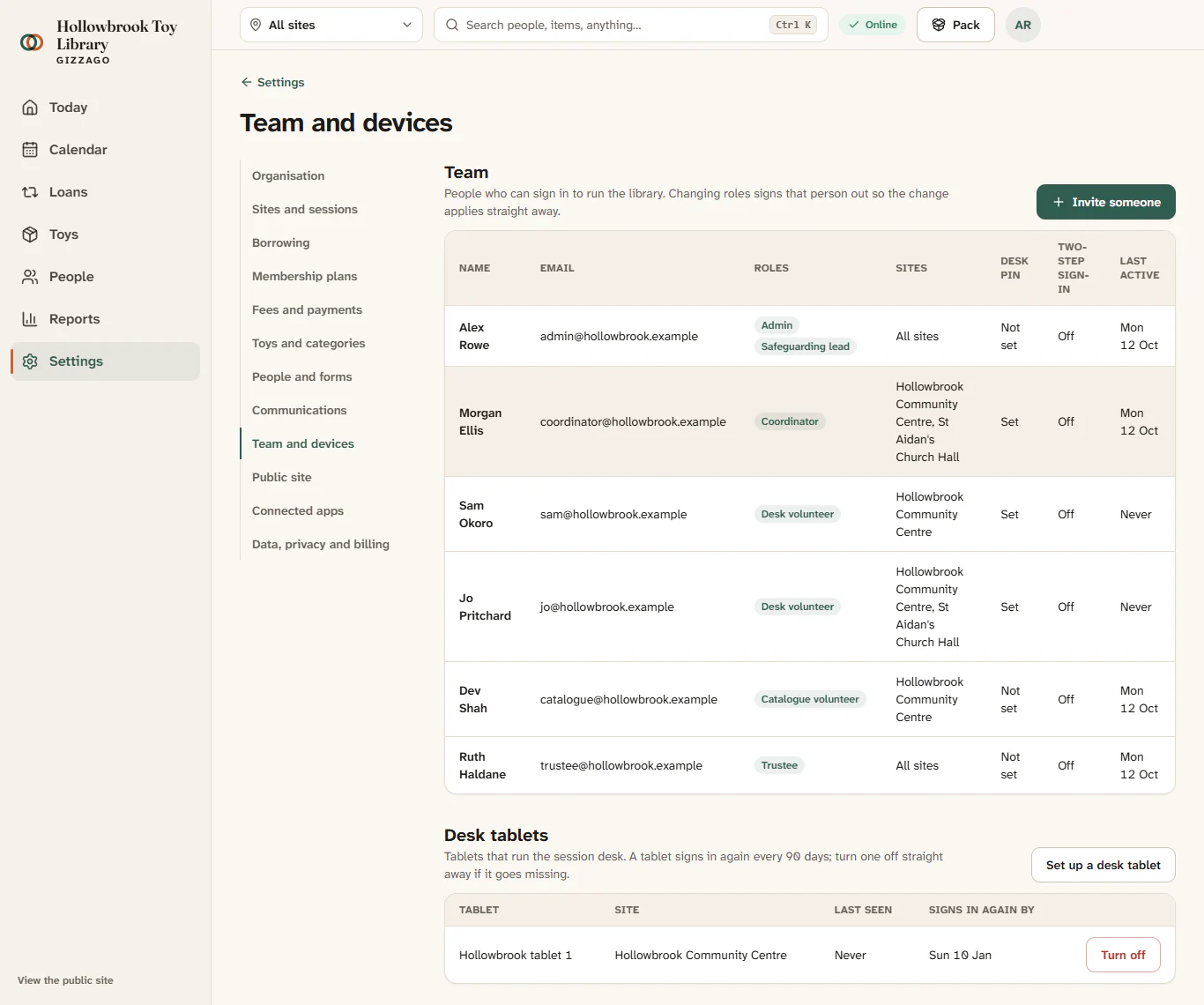
This group has two parts: Team (the people who can sign in) and Desk tablets. The team table shows each person's Roles, Sites, whether they have a Desk PIN, whether they use Two-step sign-in, and when they were Last active.
Steps
Invite someone
- Choose Settings in the sidebar, then Team and devices.
- Press Invite someone. A panel opens.
- Type their Email address.
- Tick their roles. Each role has a line explaining it:
- Admin: everything, including settings and money.
- Coordinator: runs the library day to day.
- Trustee: reads reports and Today, and cannot change anything.
- Catalogue volunteer: adds and tidies toys.
- Desk volunteer: works the session desk with a PIN.
- Safeguarding lead: sees safeguarding notes. Add this alongside another role.
- If you have more than one site, choose their Sites.
- Press Send invitation, then confirm it's you with your password or passkey.
"Invitation sent" and "We emailed" their address. They are listed under Waiting to accept until they choose a password. The link works for 7 days. To take it back, press Cancel invitation, then Cancel it.
Change someone's roles
- Click their row in the team table.
- Tick or untick roles, then press Save roles and confirm it's you.
They are signed out so the change applies straight away.
Reset a desk PIN
- Click their row and go to Desk PIN.
- Type a six-digit New PIN and press Reset PIN. Tell them the new PIN in person.
Remove someone from the team
- Click their row and go to Remove from the team.
- Press Remove, then Remove them.
Turn off a desk tablet
If a tablet goes missing, turn it off straight away.
- Under Desk tablets, find it by name and site.
- Press Turn off, then Turn it off.
You will see "Desk tablet turned off". To add a tablet, press Set up a desk tablet on the tablet itself. Each tablet signs in again every 90 days.