Settings at a glance
Find any setting quickly, and know which group it lives in and who can change it.
Who can do this: coordinators and admins. Coordinators see nine of the twelve groups; admins see all twelve.
Everything that shapes how your library runs is in Settings, split into twelve groups. Each group has a short description, so you can usually tell where something is before you open it.
| Group | What it covers | Who can change it |
|---|---|---|
| Organisation | Name, contact details, charity number, time zone and the words you use | Coordinators and admins |
| Sites and sessions | Where you lend from and the places inside each site | Admins change sites; coordinators can look |
| Borrowing | Loan length, renewals, late fees and reserving | Coordinators and admins |
| Membership plans | What people can join on and what it costs | Coordinators and admins |
| Fees and payments | Ways to pay, donations, Gift Aid, hire fee rules, card payments | Coordinators and admins; only admins connect Stripe |
| Toys and categories | Categories, age bands, tags, extra fields, label codes | Coordinators and admins |
| People and forms | The joining form, children, extra questions | Coordinators and admins |
| Communications | Who emails come from, reminder timing, email templates | Coordinators and admins |
| Team and devices | Who can sign in, roles, desk PINs and desk tablets | Admins manage the team; coordinators manage tablets |
| Public site | Your public website's look and home page | Admins only |
| Connected apps | Capture tokens and Eventbrite | Admins only |
| Data, privacy and billing | How long details are kept, exports, billing | Admins only |
This group uses your library's own word, so a toy library sees Toys and categories and a tool library sees Tools and categories.
Steps
- Choose Settings in the sidebar. On a phone, it is under Menu in the bottom bar.
- Type what you are looking for in Search settings, for example "loan period" or "Gift Aid". The list of groups narrows as you type, and each match shows the words it matched.
- Click a group to open it.
- Change what you need, then press Save under that part of the page. Each part saves on its own.
- On a computer, the list of groups stays down the left side, so you can move between them without going back.
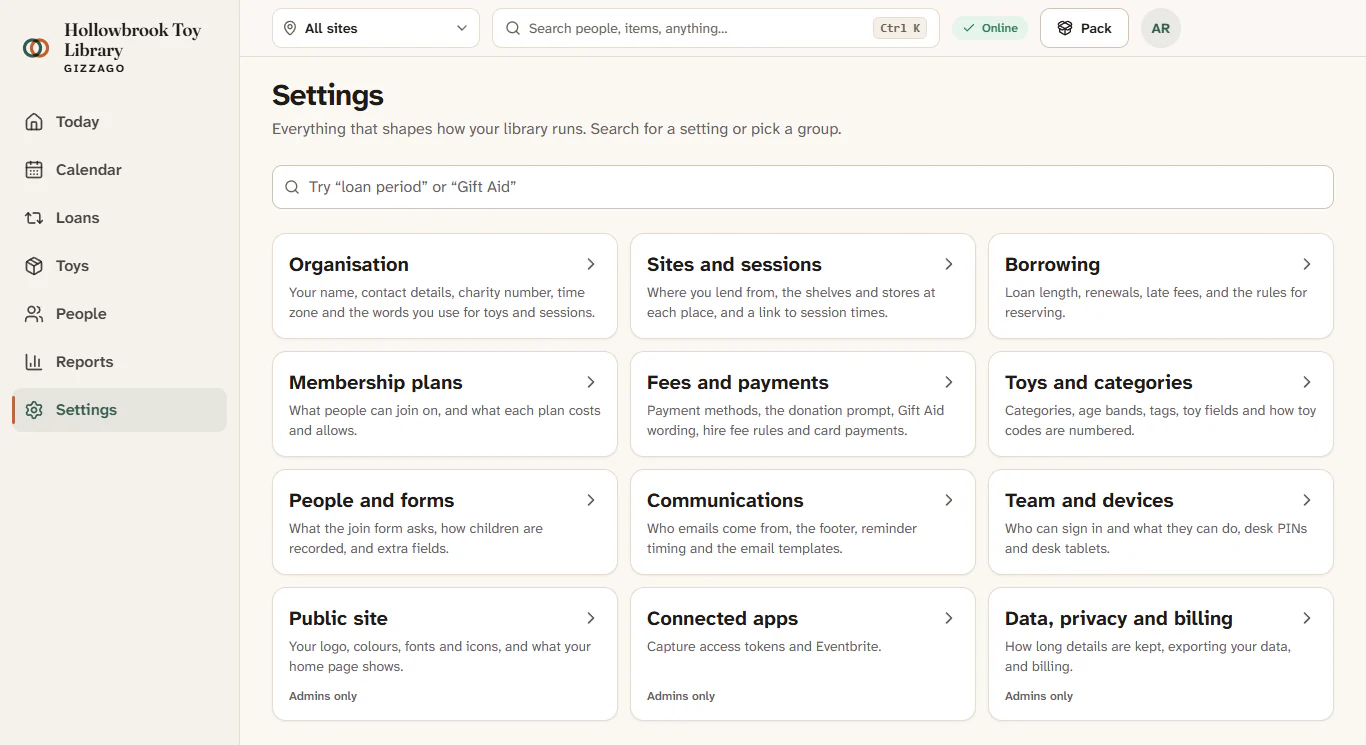
What you'll see
A message such as "Loan rules saved". If something is not allowed, a red message explains why in plain words, next to the field to fix. If no group matches your search, you will see "No settings match that" and a Show all groups button.
Good to know
- Groups only an admin can open are marked Admins only.
- Every change to a setting is recorded in the audit log, with who made it and when.
- Some actions, such as inviting someone or exporting data, ask you to confirm it's you first.