Passkeys and two-step sign-in
Keep your Gizzago account safe, with a passkey or an authenticator app as well as your password.
Who can do this: everyone with an account, on their own Security page. Coordinators and admins must set up one of these, because they look after people's details and money.
- A passkey lets you prove it is you with your phone or computer's fingerprint, face or screen lock. Nothing to remember and nothing to type.
- An authenticator app (such as Google Authenticator or Microsoft Authenticator) shows a new 6-digit code every few seconds, as a second check.
Steps: add a passkey
- Sign in, open your account and press Security in the list of pages.
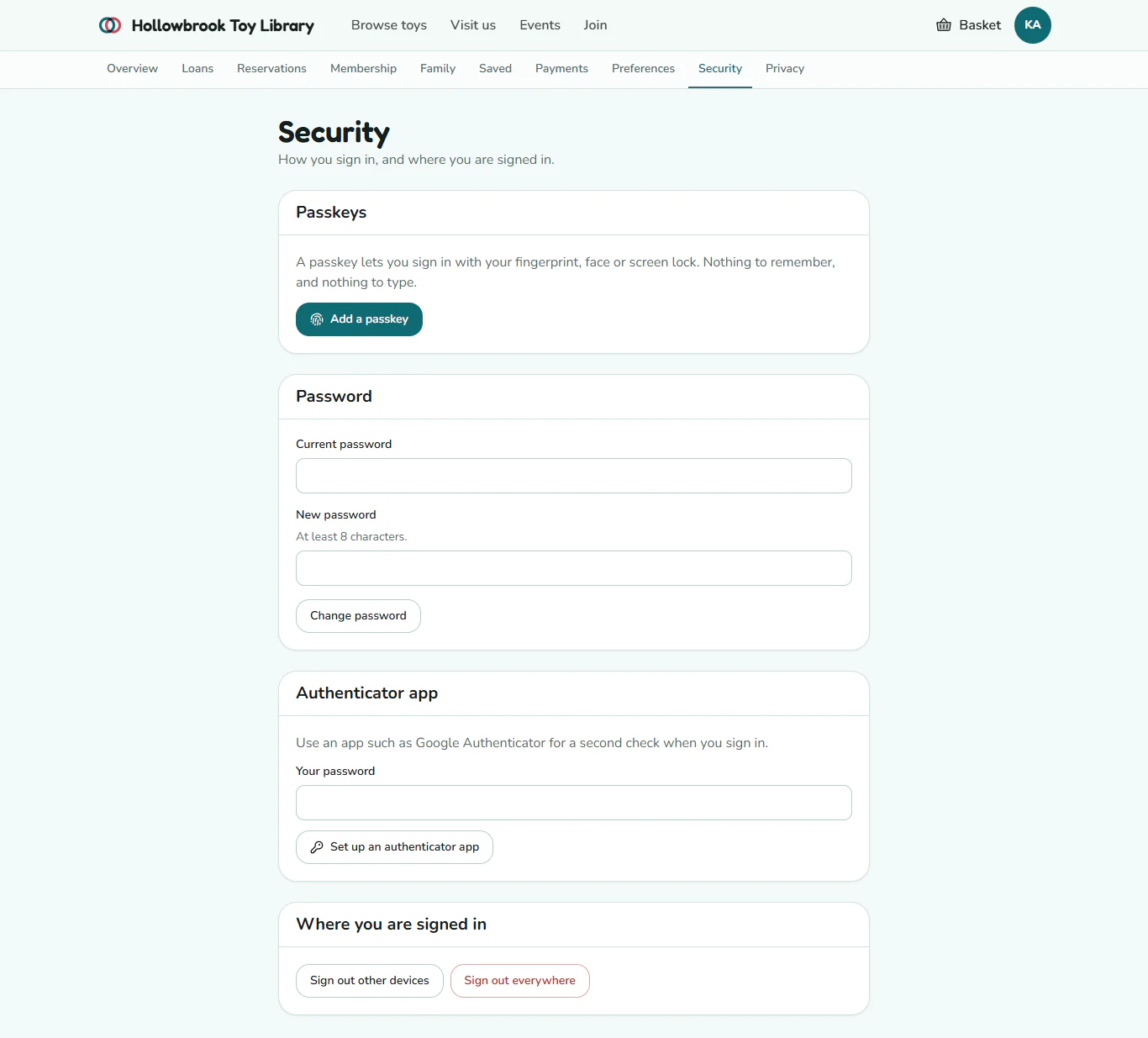
- Under Passkeys, press Add a passkey.
- Your phone or computer asks you to confirm with your fingerprint, face or screen lock. Do so.
A message says Passkey added, and the passkey is listed with the date you added it. If the page says This browser cannot make passkeys, try your phone or another browser. To remove a passkey, press Remove next to it and confirm.
Steps: set up an authenticator app
- Install an authenticator app on your phone.
- On the Security page, under Authenticator app, type Your password and press Set up an authenticator app.
- Gizzago shows a setup key. In your app, choose "Enter a setup key" and type it in.
- Write down the backup codes shown under the key and keep them somewhere safe. Each one gets you in if you lose your phone.
- Type the 6-digit code from the app and press Confirm. A message says Authenticator app added.
If you help run the library
Coordinators and admins need a passkey or an authenticator app. If yours is missing, the Security page shows a note: "Because you help run the library, please add a passkey or an authenticator app before you carry on." Admins can see who has set one up in the Two-step sign-in column of Settings > Team and devices.
Your authenticator code also works on the Confirm it's you screen.
Change your password
Under Password, type your Current password and a New password (at least 8 characters), then press Change password. A message says Password changed, and Gizzago signs you out on your other devices.
Sign out of other devices
Under Where you are signed in, press Sign out other devices if you signed in somewhere you should not have, such as a shared computer. Sign out everywhere signs you out on every device, including this one.
Gizzago emails you when your account is used on a new device. If it was not you, open Security and sign out everywhere.
You can add passkeys today, but signing in with Use a passkey on the sign-in page is not switched on yet. Sign in with your password or an emailed link.