The waitlist ("Tell me when it's back")
Let families queue fairly for popular toys, and see who is waiting for what.
Who can do this: members join and leave queues from the website and their account. Coordinators and admins see every queue and can offer a toy or remove someone.
When a toy is booked up for every session families can reserve, its page shows Tell me when it's back instead of a reserve button. Families who press it join a queue and can see their place in it.
How families join the queue
- On the toy's page, press Tell me when it's back. (If they are not signed in, Gizzago asks them to sign in first.)
- The page says, for example, You are number 1 in the queue. We will email you when it is back.
They can see the queue under Saved in their account, and press Leave queue, then Leave, at any time.
What happens when the toy comes back
By default, Gizzago keeps the toy for the first family in the queue for 24 hours:
- They get an email ("Waitlist offer") with a Reserve it button.
- In their account, Saved shows Your turn: "It is ready for you. Reserve it now." with a Reserve button.
- They accept by reserving it for a session in the usual way.
- If they do not reserve it within 24 hours, the offer passes to the next family.
See and manage the queues
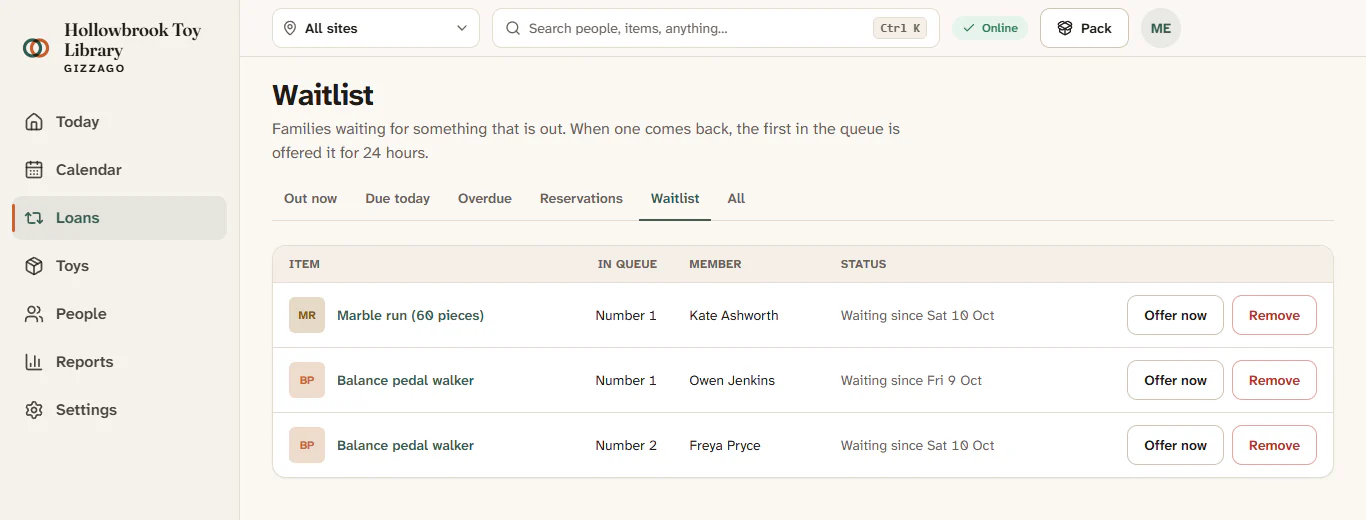
- Press Loans in the sidebar, then the Waitlist tab.
- Each row shows the Item, the family's place In queue (for example Number 1), the Member and the status.
- To offer a toy straight away, press Offer now on the row. A message says Offered to and the member's name, and the status changes to Offered until a date and time. One copy is kept for them for the offer window, and they get the offer email.
- To take someone out of a queue, press Remove, then Remove again to confirm. A message says Removed from the queue.
If nobody is waiting for anything, the tab says Nobody is waiting. Families who are waiting appear here as soon as they press Tell me when it's back.
Choose how your library's waitlist works
In Settings > Borrowing, under Reservations:
- Waiting list: switch queues on or off.
- When it comes back: Offer it to the first person (the default), or Tell everyone, first to reserve gets it.
- Offer lasts (hours): 24 by default.
Offer emails only leave Gizzago once your library's email sending is set up.