Find a person and read their history
Find anyone your library knows and see everything that has happened with them, in one place.
Who can do this: coordinators and admins.
Steps
- Press People in the sidebar. The list opens on Members.
- To narrow the list, press one of the chips along the top. Each shows a count:
- Members, Expiring (memberships ending in the next 30 days), Lapsed
- Owes money, Owes pieces
- Contacts, Donors, Everyone
- Type in Search people. You can search by name, email, phone or member number, for example
ashworth. The line above the list says how many people match, such as 1 person in Members matching "ashworth".
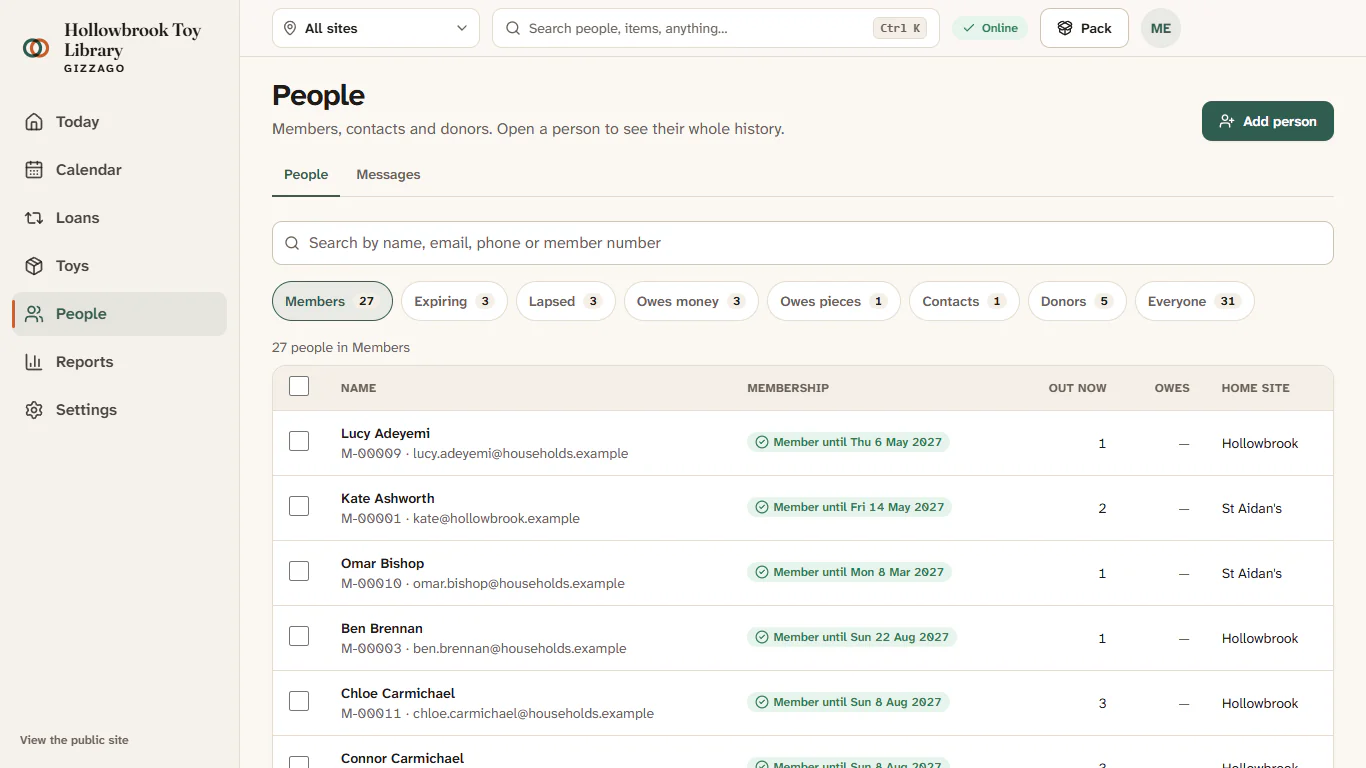
- Press the person's row, for example Kate Ashworth. Their record opens on the Overview tab.
- Read the four blocks at the top: Out now, Reservations next, Money and Owes. Below them are the five latest things that happened.
- Press See full timeline to read everything, newest first. Use the chips Everything, Loans, Money, Messages and Notes to filter it. Each entry links to the loan, payment or email it describes.
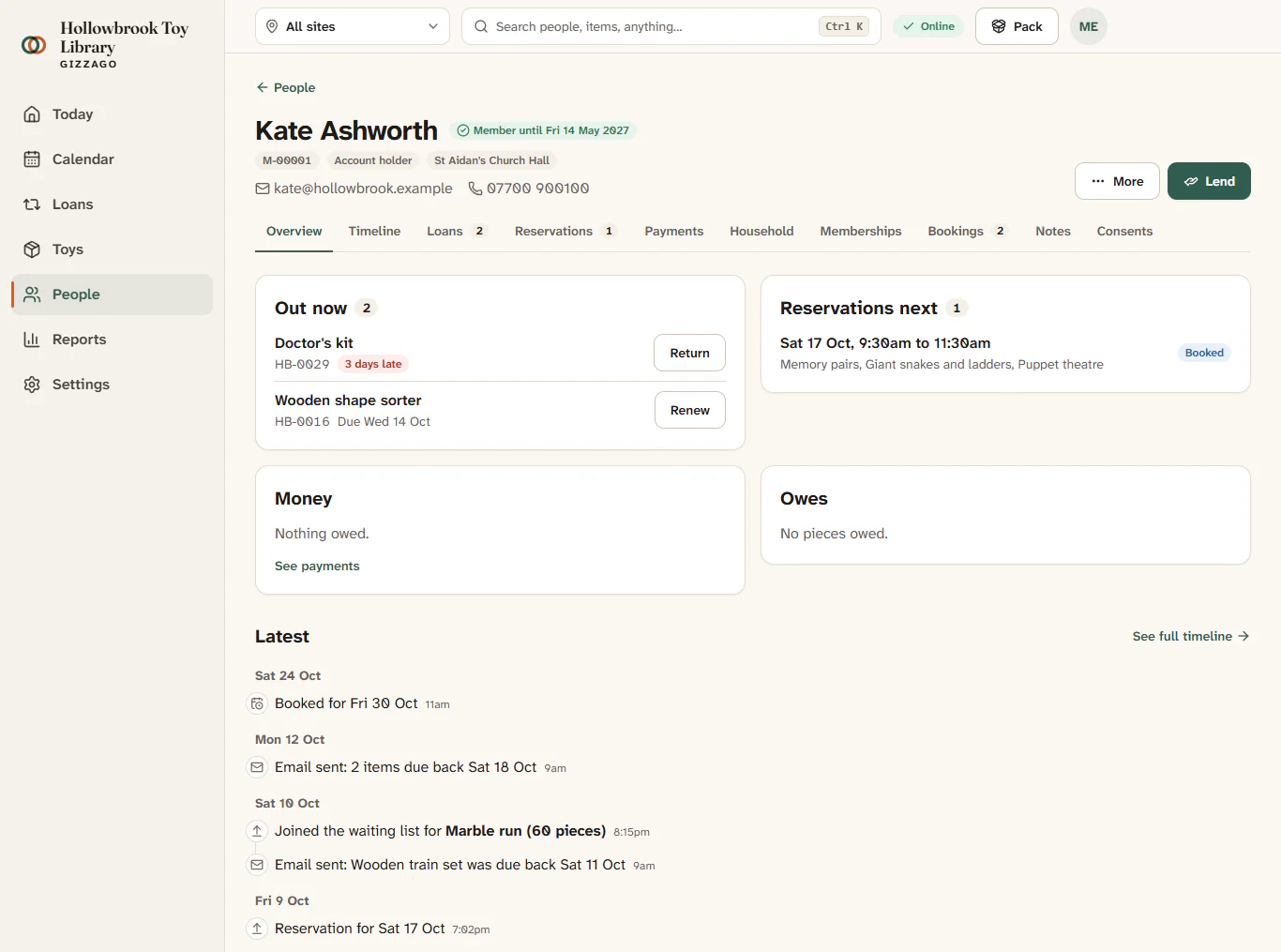
The top of the record shows the person's name, membership status, member number, their role in the household, home site and any tags. Under it is a row of tabs: Overview, Timeline, Loans, Reservations, Payments, Household, Memberships, Bookings, Notes and Consents. On a phone the tabs become a Person section list you choose from.
Take a quick look without leaving the list
- Tick the box at the start of one row.
- Press Quick view in the bar that appears. A side panel shows their email, phone, what they have out, what they owe and their children.
- Press Open record in the panel to go to their full record, or close the panel to carry on down the list.
The same selection bar also has Tag (add a label such as "volunteer" to everyone ticked) and Message (write to the people in this list).
Badges and banners to look out for
- At the desk: a banner with the person's desk flag, or a note that they owe a piece. See Notes, desk flags and safeguarding notes.
- Safeguarding: see lead: there are safeguarding notes on this record. Only the safeguarding lead can read them.
Lend from the record
The Lend button at the top right opens the desk for today's session with this person already loaded. If no session is open today, start one from Today first.