Finding your way around
Learn the layout once and you can find anything: seven places, one search box.
Who this is for: coordinators, admins, trustees and catalogue volunteers. Desk volunteers work on the desk screen instead, which has none of this.
The sidebar: seven places
| Place | What is in it | Tabs along the top |
|---|---|---|
| Today | Your to-do list for the day. See Today, your home page. | none |
| Calendar | Sessions and events. | Schedule · Rules and closures |
| Loans | Everything out on loan, and reservations. | Out now · Due today · Overdue · Reservations · Waitlist · All |
| Toys | Your catalogue and stock. Called "Tools" or "Things" if that is your library's word. | Catalogue · Add toys · Care · Stock moves · Labels |
| People | Members, households and contacts, and the emails sent to them. | People · Messages |
| Reports | The numbers. | Overview · Saved reports · Sessions · Money · Funder report · Audit log |
| Settings | How Gizzago works for your library, in twelve groups. | none (one page of groups) |
The tabs are always visible: nothing hides behind a "More" menu.
The top bar
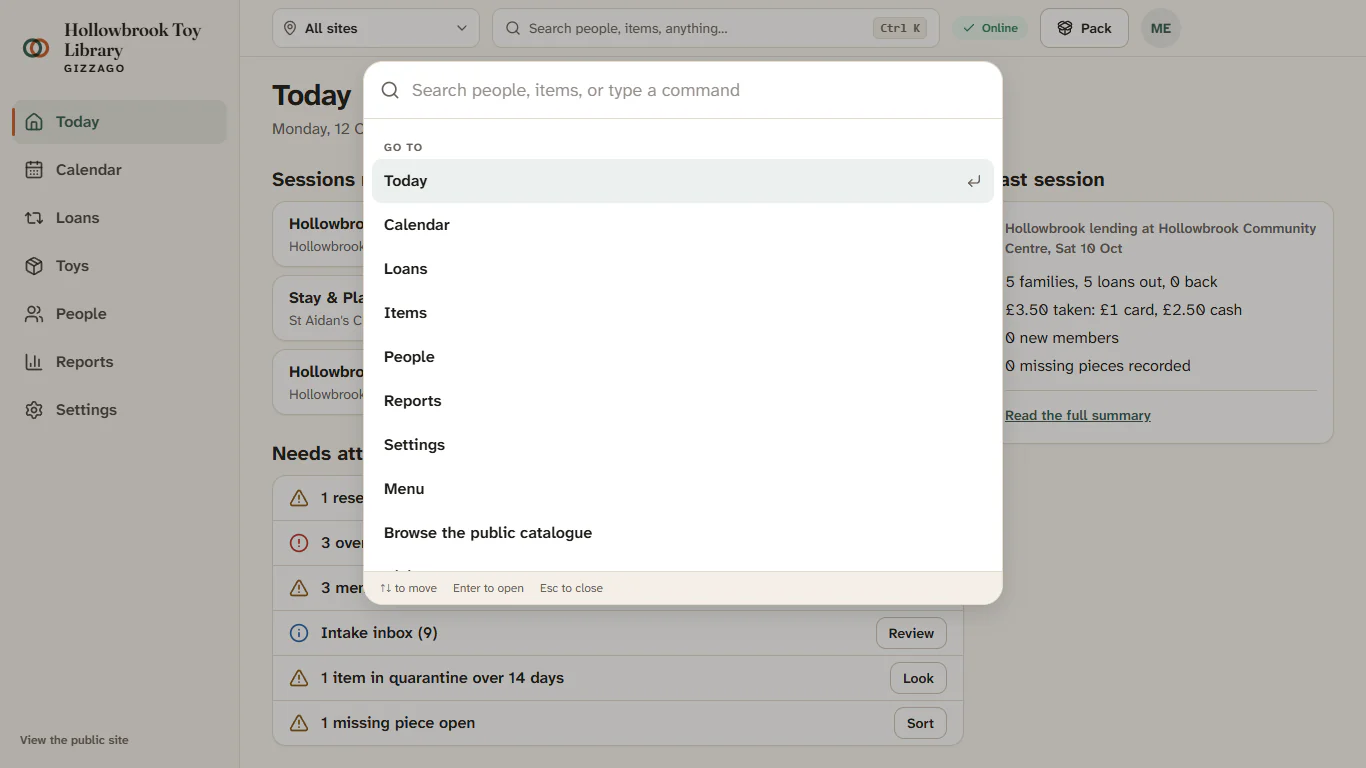
- Site switcher. If your library lends from more than one place, choose All sites or one site. Every list, count and card then shows only that site.
- Search or run a command. One box finds people, toys and item codes, and runs commands such as "Import items", "Start session now" or "Print labels". Press Ctrl K (or ⌘ K on a Mac) to jump to it from anywhere.
- Session button. When a session at your site is running, about to start (within two hours) or being cashed up, a button appears labelled Pack, Open desk or Cash up. It takes you straight to that stage of the session.
- Your account menu. Your name, top right: switch between light and dark (Theme), open your own account, or Sign out.
Side panels
Quick jobs (taking a payment, adding a note, editing a reservation) open in a side panel on the right, so you do not lose your place. Opening another panel replaces the first; they never stack up. Press Esc to close one. Bigger jobs open a full page. Gizzago only shows a pop-up box to confirm something you cannot undo, and many of those are a small "Are you sure?" right where you pressed.
Every number is a link
If Today says "7 overdue", pressing it opens those seven loans. Every empty list tells you what to do next, and each screen has one main button, in your brand colour.
On a phone
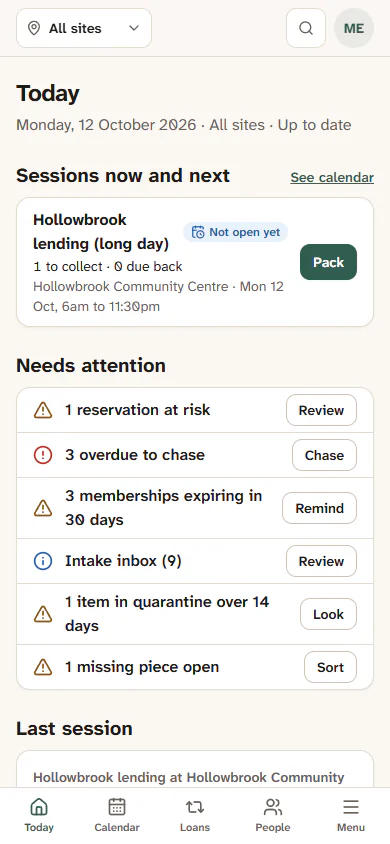
Gizzago works on a phone for the jobs coordinators do in the evening: Today, chasing overdue toys, renewals, the calendar and reservations. The sidebar becomes a bar along the bottom with Today, Calendar, Loans, People and Menu (which lists Toys, Reports and Settings). Tables turn into cards. A few big jobs, such as editing many toys at once, importing and printing labels, say they are easier on a larger screen.
Keyboard shortcuts
On a laptop, press ? to list the shortcuts for the screen you are on. The desk has its own set: see Keyboard shortcuts.