The sent-mail log
Check what a family was sent, and when, so you can answer "I never got an email" with confidence.
Who can do this: coordinators and admins. Members cannot open this page.
Steps
- Press People in the sidebar, then the Messages tab. Every email the library has sent is listed, newest first, with a count above the list.
- To find something, type in Search by subject or email address, for example
kate@. - To narrow the list, choose a Message, for example Loan overdue, and a Status. The list changes as soon as you choose; there is no button to press.
- Press a row. A side panel called Sent message opens.
- Read who it went to, the Subject, when it was Sent and its Status, with the email itself below, exactly as the family saw it.
- Press Esc or close the panel to go back to the list.
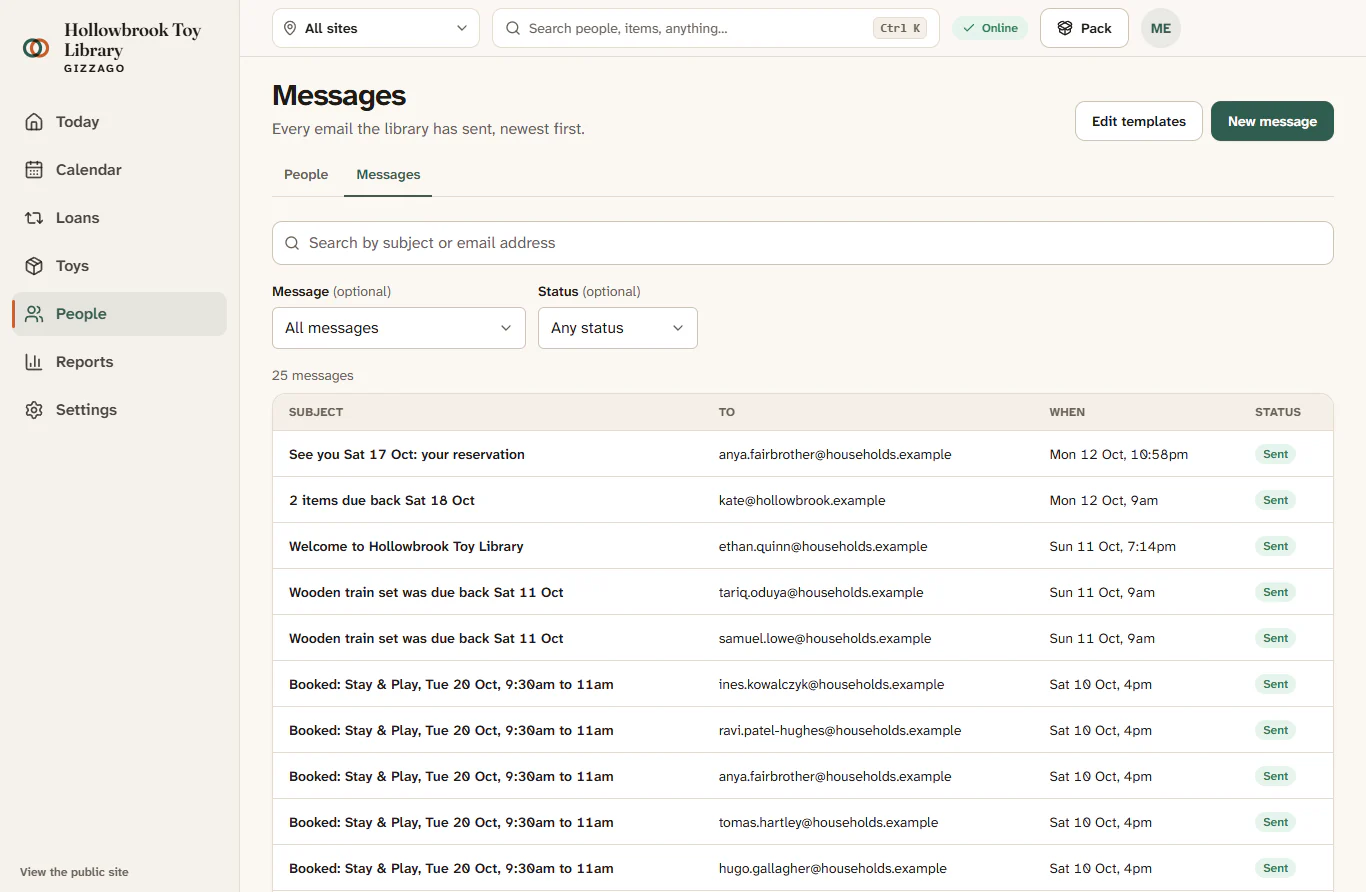
What you'll see
If nothing matches your search or filters, the page says No messages match with a Clear filters button. Press it to see the whole log again.
What the statuses mean
- Sent: Gizzago handed the email over for delivery.
- Sending: it is on its way.
- Failed: it could not be sent. Check the email address on the person's record.
- Bounced: the family's email provider sent it back, often because the address is wrong or the mailbox is full.
- Switched off: it was not sent, because someone switched that message off on the Message templates page.
Find the emails for one family
Every email also appears on the person's own timeline. Open their record, press See full timeline and choose the Messages chip. See Find a person and read their history.
Before email sending is set up
Until your library's email sending is set up, nothing leaves Gizzago. Every email Gizzago would have sent is still listed here, so you can see what families will get once it is switched on.
From this page you can also
- Press Edit templates to change the wording of the automatic emails (see Edit, test or switch off a message).
- Press New message to write to a group of members (see Write to your members).