The calendar
See every lending session, event and closure in one place, and open any of them.
Who can do this: coordinators and admins.
The Calendar holds two kinds of thing. Lending sessions are the times your library is open to lend and take back toys. Events are things like Stay & Play or Music Makers, where families book places. Closures (days you are shut) show on the calendar too.
Steps
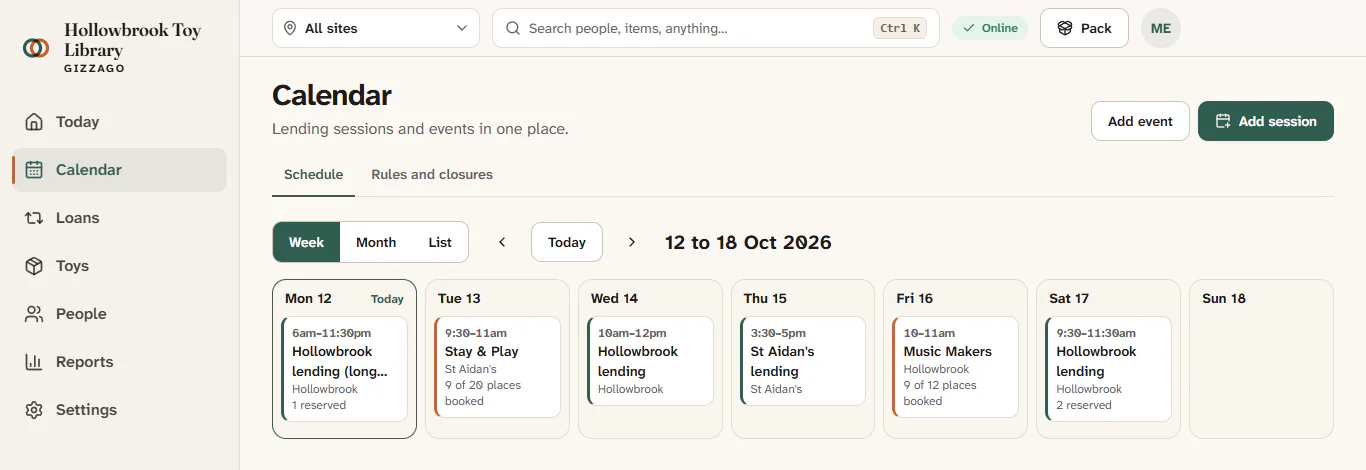
- Choose Calendar in the sidebar. On a phone it is in the bar at the bottom of the screen. The calendar opens on this week.
- Pick how you want to see it with the buttons above the dates: Week, Month or List. The list is the easiest view on a phone.
- Use the arrows either side of Today to move to the previous or next week or month. Press Today to come back to now.
- To see one site only, choose it in the site switcher in the top bar, for example St Aidan's Church Hall. Choose All to see every site again.
- Click a session or event to open its page. The page has four tabs:
- Details: where and when, whether toys can be lent, when reservations close, and the handover note.
- Bookings: the check-in list for an event. A lending session takes reservations instead, and shows a See reservations link.
- Pack: the pick list and what to bring.
- Summary: how it went, once the session is closed.
- Use the button at the top of the session page to work on it. It changes as the session moves on: Pack, Open desk, Cash up or View summary.
What you'll see
Each day lists its sessions and events with their times. Events show how full they are, such as "9 of 20 places booked". A day you are shut shows "Closed:" and the reason, such as "Closed: Hall booked for a wedding". If nothing is planned you will see "Nothing scheduled in this period", with a button to set up weekly sessions.
Tips
- The second tab at the top of the Calendar, Rules and closures, is where weekly sessions, closures and your events are set up.
- You can jump to the calendar from the search box: press Ctrl + K (Cmd + K on a Mac) and type "Calendar schedule".
- Today, your home page, shows your next sessions as cards, so on a session day you may not need the calendar at all.
- Gizzago uses your library's own word for "session" if you have changed it in Organisation settings.